Frequently Asked Question
General
-
Q: Something is wrong with my GUI — I can't see everything.
A: This is usually due to a small or low-resolution display. Try reducing the size of the interface elements: hover over the panel you want to resize, hold Ctrl and use either the mouse wheel or the + / - keys. -
Q: Sometimes the blocks and the rest of the GUI freeze.
A: This typically indicates a connection issue and often resolves on its own. Try refreshing the page first. If the issue persists, reload your MiRoCloud session via the manager page (Close → Drop → Open → Launch). If that still doesn’t help, contact a member of staff for a temporary account while the issue is investigated. -
Q: I get an error when using sensors (cliff / camera / sonar).
A: Sensors require a short initialisation period (~1 second) after the program starts. Add a short Wait block before accessing them, or perform another action first. -
Q: MiRo camera(s) are frozen.
A: Video streams are bandwidth-intensive and may lag. Click the Reconnect button at the top of the simulator window.
-
Q: MiRo does not react to the environment.
A: Ensure that you are polling sensors continuously and using up-to-date readings in your logic. -
Q: Nothing happens when I run my code, and I get
timeout waiting for cameras to be ready.
A: The simulator is likely paused. Click Play to resume.
Blocks
- Q: Blocks in the Precise Movement group (e.g. “Move X metres/steps”) sometimes cause the program to freeze.
A: This usually happens when the Position Correction algorithm fails. Try disabling Position Correction and follow the best practices below. Note that disabling it may increase drift when moving in a straight line.
Python interface
- Q: My program doesn’t do anything when I run it.
A: This is often caused by a syntax error in your Python code. Check it carefully — some errors may fail silently and not produce a clear message.
Known issues
- MiRo does not always move in a perfectly straight line (both in simulation and in reality).
- After being idle for a long time in the simulator, MiRo may begin to drift slowly.
- Settings in the Program Start block may revert to defaults when loading a saved file.
- A blank simulator view or visual artefacts may be caused by browser plugins. Try disabling them one by one.
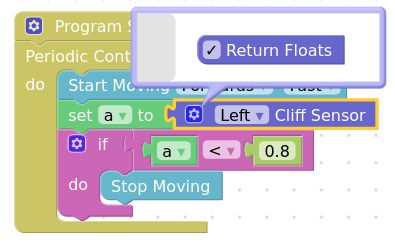
- When using Float outputs from cliff sensors in comparisons, assign the value to a variable first:
- When implementing a custom cliff reflex, movement blocks may become unresponsive or skip execution. Disabling the built-in cliff reflex can reduce this.
- The cliff reflex may remain ON even after being disabled. This is due to a flag not being published correctly. A workaround is to publish the flag manually (see example here).
- On displays with resolutions higher than Full HD, mouse clicks in the simulator may be misregistered due to scaling issues, causing input to register at an offset location in screen space. The actual registered click position can be verified by observing a small yellow sphere that briefly appears at the detected hit point.
Best practice
- Save frequently, and use separate files.
- Do not run or save code with 'hanging' blocks (unconnected blocks that are not Starter blocks).
- Do not modify blocks while the program is running.
-
You can build larger programs by combining smaller ones:
- Save each subprogram separately
- Load them one by one and move their blocks into the bin
- Restore them onto the canvas when ready
-
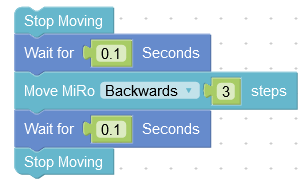
When combining immediate and duration-based action blocks, insert a short delay between them to avoid timing issues:
- Avoid using double quotes in the Print String block.