Getting started with MiRoCloud
Prerequisites
- A supported web browser (Firefox is preferred).
- MiRoCloud credentials.
Danger
Do not reset your account password, as this will invalidate your account.
Logging in
Go to the MiRoCloud hub provided by Consequential Robotics:
You should see the following login page:
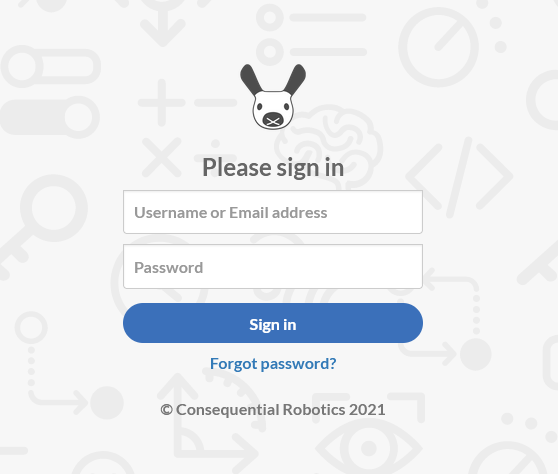
Log in using the MiRoCloud username and password provided to you.
Launching a MiRoCloud session
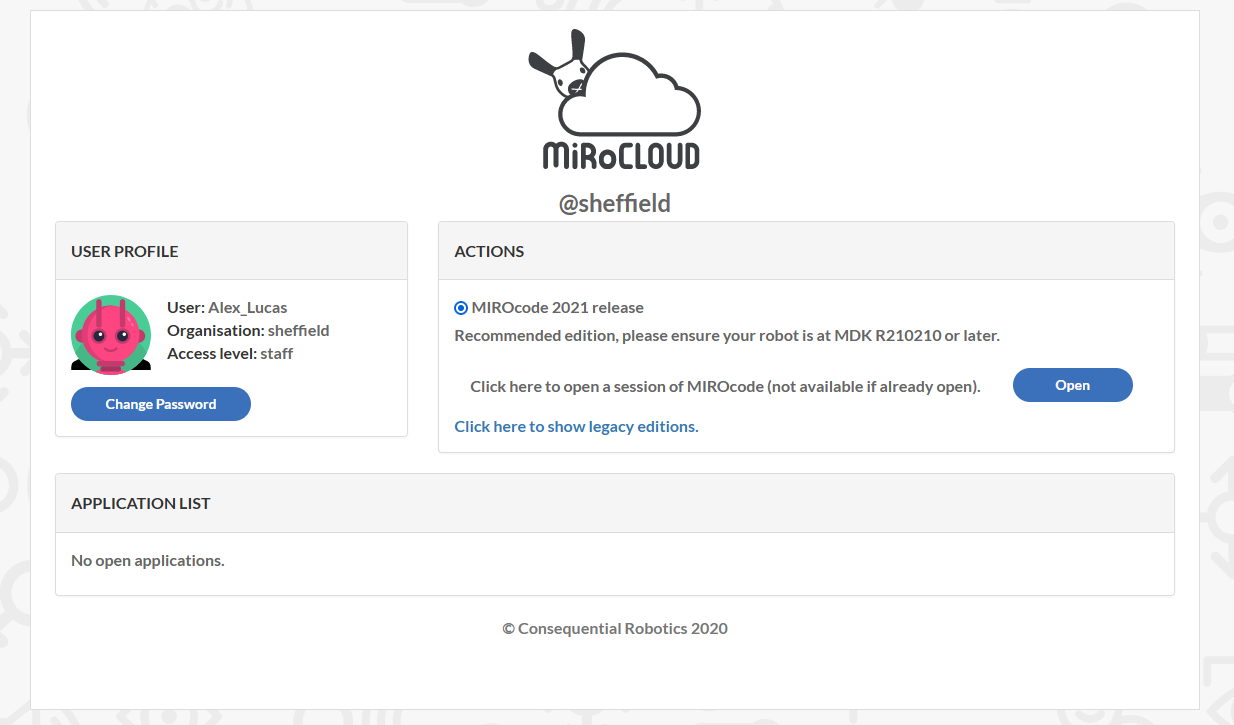
After logging in, you should see:
Note
The default Release edition should be used unless instructed otherwise.
To start the simulator, click Open.
A remote virtual machine will begin booting a new session ("instance", as we call it).
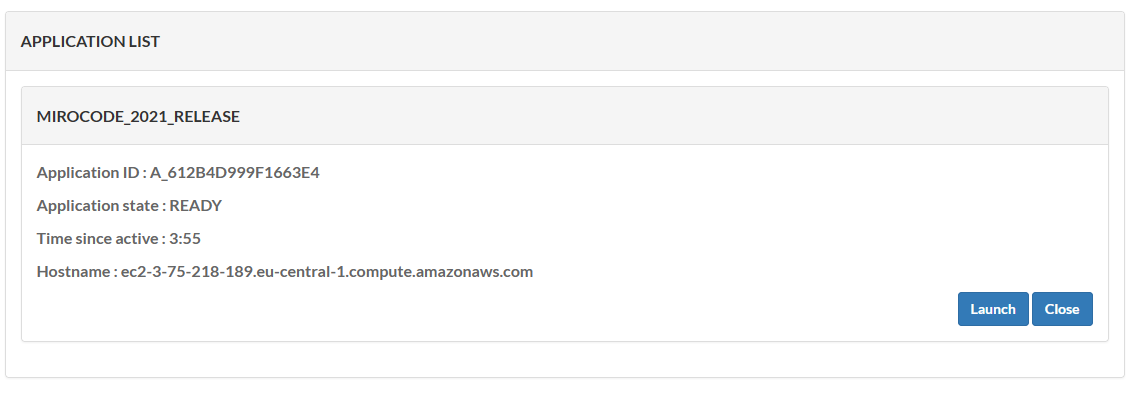
Wait about a minute or two for it to load. The new session should appear under the APPLICATION LIST pane.
Once it's ready, click Launch to start your MiRoCloud session (shown below).
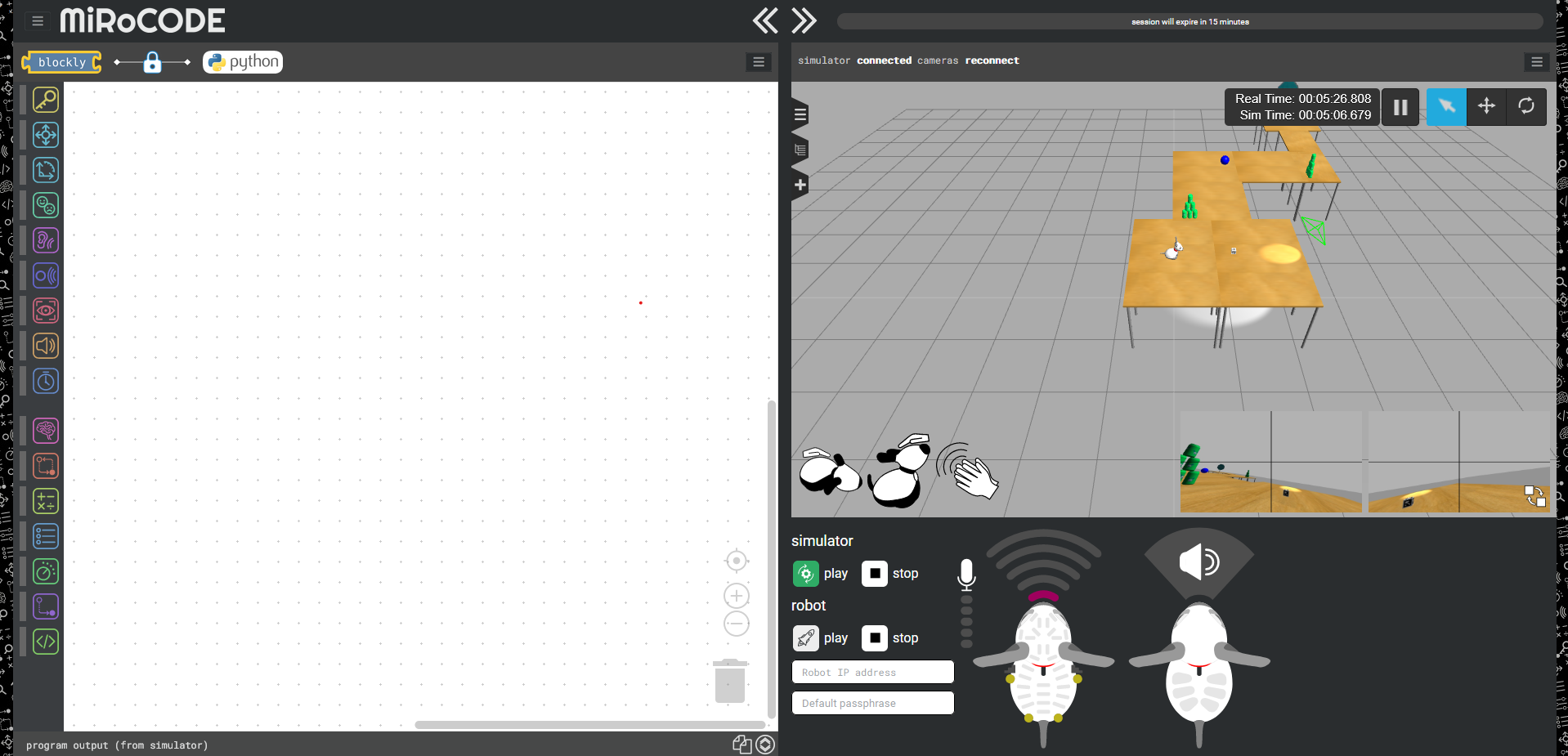
Once everything has loaded successfully, you should see the following interface: